# Welcome

Welcome to our Docs, we are excited to have you here! Here's what we recommend you check out.

## Let's get started

Here's a useful way to get started with your service.

{% content-ref url="/pages/zM20IMxdQxf0PArWzN3i" %}
[Registration](/how-to-start/registration)
{% endcontent-ref %}

{% content-ref url="/pages/Xn25iYWkpoXPbQ8yOfiw" %}
[Panel Tour](/how-to-start/panel-tour)
{% endcontent-ref %}

## Documentation

{% tabs %}
{% tab title="Bots" %}
{% content-ref url="/pages/XJtj9L0soh7PxclPwki6" %}
[Invite Your Bot](/bot-hosting/invite-your-bot)
{% endcontent-ref %}

{% content-ref url="/pages/6M2CZ1anLMel08enYMus" %}
[Files](/bot-hosting/files)
{% endcontent-ref %}

{% content-ref url="/pages/lk1ZRSjI1e5teJRAsecE" %}
[Packages](/bot-hosting/packages)
{% endcontent-ref %}

{% content-ref url="/pages/ZSxe5olU2kEHAkxJeEoC" %}
[Startup](/bot-hosting/startup)
{% endcontent-ref %}

{% content-ref url="/pages/dZPKzZUHQWUM1hK3ueFl" %}
[SFTP](/bot-hosting/sftp)
{% endcontent-ref %}
{% endtab %}
{% endtabs %}


# Registration

Guiding you through your way on using Uniplex Host.

## Video Guide

<figure><img src="https://3648012086-files.gitbook.io/~/files/v0/b/gitbook-x-prod.appspot.com/o/spaces%2FjY7Ly60Jslfxu9tahTdi%2Fuploads%2FjnLFLvcqVrYwBneTKaLB%2Fguide.gif?alt=media&amp;token=463b0252-0347-4f68-b450-f75e3f57fad8" alt=""><figcaption><p>55 Second Buying Guide</p></figcaption></figure>

## Step-by-Step Guide

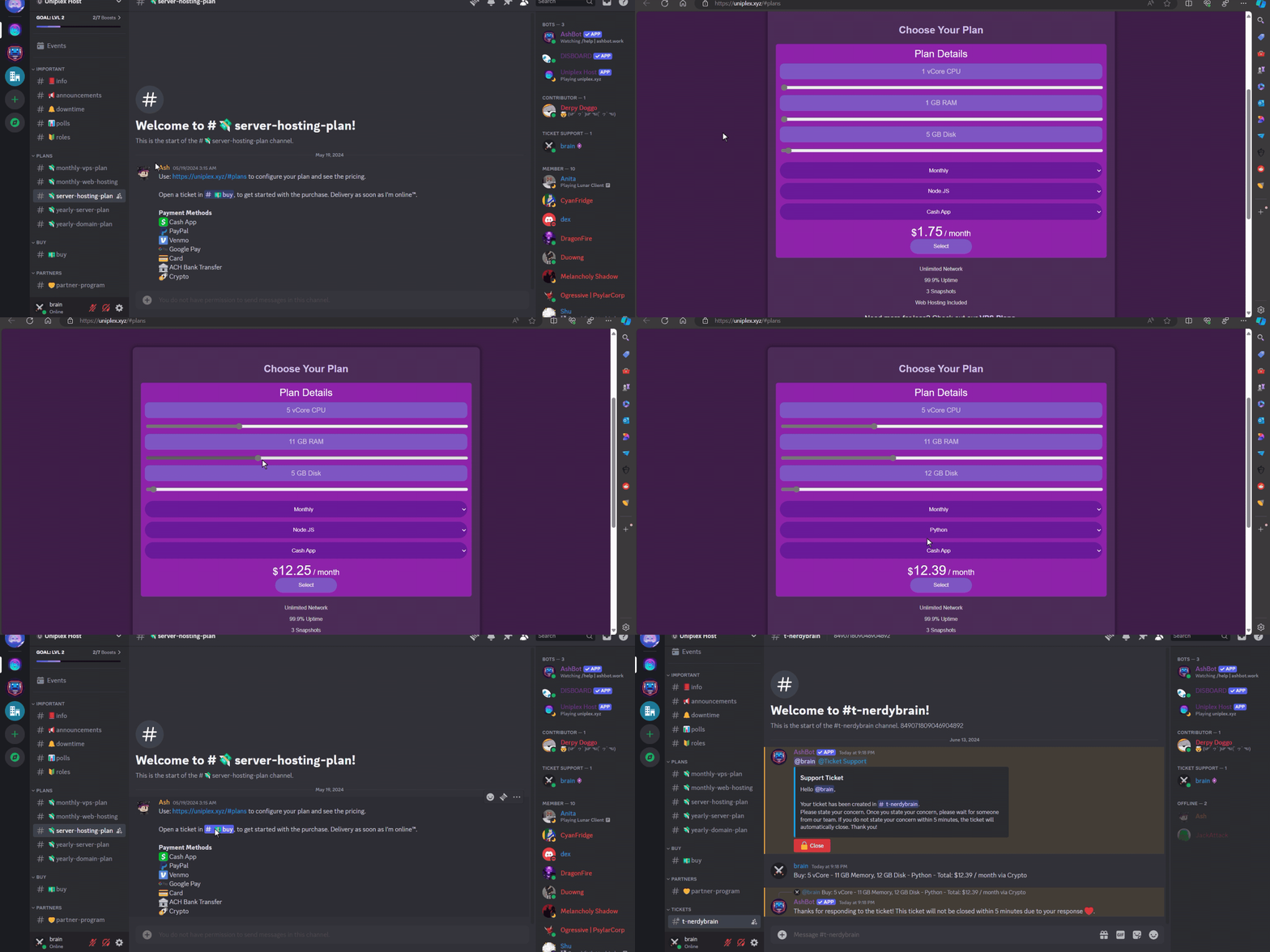
1. Go to <https://uniplex.xyz/#plans> and use the scrollers and options to choose your perfect plan.
2. Then click "Buy" and paste the information in our Discord server in a ticket from the pop-up.
3. Wait for someone to help you and accept your payment, you will be asked for your e-mail.
4. We will create an account for you on our [panel](https://panel.uniplex.xyz) where you can visit your newly installed server.
5. You can manage the server with the log-in provided by the bot in the ticket.
6. You will be reminded by our Discord Bot when it's time to renew.
7. All done!\
   \
   (Please note we are working on a custom PHP dashboard to automate everything)


# Panel Tour

Explore all the options our panel offers for you.

<figure><img src="https://3648012086-files.gitbook.io/~/files/v0/b/gitbook-x-prod.appspot.com/o/spaces%2FjY7Ly60Jslfxu9tahTdi%2Fuploads%2FjjTEA6yqGZw9NuAFapcl%2Fguide3.gif?alt=media&amp;token=0b298196-2d95-4ec7-ae0e-7f4c300b9d4c" alt=""><figcaption><p>Video Tour</p></figcaption></figure>

## Tour

* **Server**
  * **Console** - Conduct power actions such as starting, stopping, or restarting your bots as well as viewing your console logs.
  * **File Managers** - Manage your files, edit them, and upload them.
  * **Databases** - This is where you can find the built-in panel database. We give free web hosting to all users who request it which includes databases so you shouldn't need to visit this page.
  * **Schedules** - Schedules can execute actions for your server when you want them to.
  * **Backups** - We offer 3 Snapshots (Backups) to all customers. They are not added automatically, you must request them in your ticket, and we will add them.
  * **Users** - Here you can add additional users to your server, they don't have to have an account on the panel, just enter their e-mail and the panel will make an account for them.
  * **Network** - Here you can allocate additional ports to your server if we assign them, you usually don't need to visit this page.
  * **Startup** - Here you can modify how your server starts, what it does when it starts, and actions your server should take when you restart it.
  * **Settings** - Here you will find details for SFTP, find information about your server like the server ID or node used for debugging purposes, and you can modify the server name or description or even reinstall your server.
  * **Activity** - Here you can find a detailed log of actions taken by you or other users as well as when they were done.
* **Links**
  * **Website** - Takes you to our own main website with our plan information and FAQs.
  * **Discord** - Our support server where all billing occurs now.
  * **Billing** - Currently, this also redirects you to our Discord where billing happens, although we plan to implement a custom PHP built dashboard in the future.
  * **Knowledgebase -** Takes you to this page where you are right now.


# Invite Your Bot

This guide will explain how to add your bot to your server.

First, visit the [Discord Dev Portal](https://discord.com/developers) and head on over to the `OAuth2` tab.

<figure><img src="https://3648012086-files.gitbook.io/~/files/v0/b/gitbook-x-prod.appspot.com/o/spaces%2FjY7Ly60Jslfxu9tahTdi%2Fuploads%2FtJOz9mh8m1qJnm44Jocf%2Fimage.png?alt=media&amp;token=a8577a20-5be5-4149-8a25-6e9ae61a1b9b" alt=""><figcaption><p>OAuth2 Tab</p></figcaption></figure>

Once there, locate the "OAuth2 URL Generator" section and select all necessary scopes. For all Discord Bots, select the `bot` scope and if you have slash commands on your bot, then also select the `applications.commands` scope, if you are unsure if your bot has slash commands or want to implement them in the future, just select it just in case.

<figure><img src="https://3648012086-files.gitbook.io/~/files/v0/b/gitbook-x-prod.appspot.com/o/spaces%2FjY7Ly60Jslfxu9tahTdi%2Fuploads%2FfgA90eN8JiH4mS8ShRfP%2Fimage.png?alt=media&amp;token=b73521b1-6d7f-420a-b4ac-8b7baf2cbec5" alt=""><figcaption><p>OAuth2 URL Generator</p></figcaption></figure>

Once you have selected the scopes, scroll down to the new area available and select your bot's permissions based on what you want it to do. For your bot to be able to do anything, just select the `Administrator` scope.

<figure><img src="https://3648012086-files.gitbook.io/~/files/v0/b/gitbook-x-prod.appspot.com/o/spaces%2FjY7Ly60Jslfxu9tahTdi%2Fuploads%2F5EMIqneou0TGnmjl7CIn%2Fimage.png?alt=media&amp;token=5f50383b-9a15-47a4-91d4-2f2389a75302" alt=""><figcaption><p>Bot Permissions</p></figcaption></figure>

Now we are done, just copy the `GENERATED URL` at the bottom and paste it in a new tab to add your bot to your server and share the link with your friends if you want them to add your bot as well.

<figure><img src="https://3648012086-files.gitbook.io/~/files/v0/b/gitbook-x-prod.appspot.com/o/spaces%2FjY7Ly60Jslfxu9tahTdi%2Fuploads%2F8Dik6OmjHNzPqcVpNTDi%2Fimage.png?alt=media&amp;token=2b757458-d513-47ef-88e5-9153c0697942" alt=""><figcaption><p>Generated URL</p></figcaption></figure>


# Files

This guide will explain how to upload your files easily to our host.

## 1. Archive the files

Go to where your files are stored in your files app and highlight all the files as well as any folders then archive them. (For NodeJS, do not include `.npm` or `node_modules`, those are auto generated, when you start your server and they are usually very heavy, more waste of data transfer for you and slower uploads)

<figure><img src="https://3648012086-files.gitbook.io/~/files/v0/b/gitbook-x-prod.appspot.com/o/spaces%2FjY7Ly60Jslfxu9tahTdi%2Fuploads%2FtiT1BVulewTjwvvPcm3r%2Fimage.png?alt=media&amp;token=a10558fa-d270-4837-893f-896b907192b9" alt=""><figcaption><p>File Explorer</p></figcaption></figure>

## 2. Upload the archive

Head over to the "File managers" tab for the server and upload the archive.

<figure><img src="https://3648012086-files.gitbook.io/~/files/v0/b/gitbook-x-prod.appspot.com/o/spaces%2FjY7Ly60Jslfxu9tahTdi%2Fuploads%2FyBYMMorfUv0qs5or7lmx%2Fimage.png?alt=media&amp;token=2aa859db-2cf5-421d-892f-c7c80dcd402e" alt=""><figcaption><p>File Managers</p></figcaption></figure>

{% hint style="warning" %}
If the archive is > 100 MB, please use [SFTP](/bot-hosting/sftp) to transfer the files.
{% endhint %}

Once the archive is uploaded, click on the three dots on the right of the file, and finally click "Unarchive". It could take a few minutes to load and successfully unarchive your archive to load up the file, once it's done, you are good to go.

<figure><img src="https://3648012086-files.gitbook.io/~/files/v0/b/gitbook-x-prod.appspot.com/o/spaces%2FjY7Ly60Jslfxu9tahTdi%2Fuploads%2FlM61GPN1l2Wi4Ix3HWmX%2Fimage.png?alt=media&amp;token=66fa85eb-3794-4cf7-9f94-e6a91fdee844" alt=""><figcaption><p>Unarchiving the archive</p></figcaption></figure>

(Make sure to delete the archive file afterwards to reduce disk usage for your server)


# Packages

This guide will show how to install packages on Uniplex Host.

<figure><img src="https://3648012086-files.gitbook.io/~/files/v0/b/gitbook-x-prod.appspot.com/o/spaces%2FjY7Ly60Jslfxu9tahTdi%2Fuploads%2F0HVmdxBneChZqMh05zun%2Fguide2.gif?alt=media&amp;token=baf7cf37-0b41-4505-a208-39137f4fe8b1" alt=""><figcaption><p>Video Guide</p></figcaption></figure>

First, head over to the "Startup" tab which can be found in the top bar or on the side bar.

<figure><img src="https://3648012086-files.gitbook.io/~/files/v0/b/gitbook-x-prod.appspot.com/o/spaces%2FjY7Ly60Jslfxu9tahTdi%2Fuploads%2FdJuf9N5z5YSTSJq7HZlJ%2Fimage.png?alt=media&amp;token=78569768-b938-48f1-a9f0-500777617554" alt=""><figcaption><p>Finding the "Startup" tab</p></figcaption></figure>

Once there, look for either `ADDITIONAL NODE PACKAGES` or `ADDITIONAL PYTHON PACKAGES` variables. After you find it, enter the packages separated using spaces like `discord.js@13 node-fetch moment`. Don't enter any commands here such as `npm install` or `pip install`, just enter the packages separated using spaces.

<figure><img src="https://3648012086-files.gitbook.io/~/files/v0/b/gitbook-x-prod.appspot.com/o/spaces%2FjY7Ly60Jslfxu9tahTdi%2Fuploads%2FuWRi6OBcAIaHfeCFdZDC%2Fimage.png?alt=media&amp;token=f0643e84-f4c7-4330-a0cf-0be708de2dd5" alt=""><figcaption><p>Example on a NodeJS server</p></figcaption></figure>

Head on back to the "Console" tab and start your server. If there's a lot of packages you want to install, it may feel like the server is not doing anything, but it takes time to install those packages, take a look at the CPU usage and if it's high then it's probably installing your packages.

<figure><img src="https://3648012086-files.gitbook.io/~/files/v0/b/gitbook-x-prod.appspot.com/o/spaces%2FjY7Ly60Jslfxu9tahTdi%2Fuploads%2F2X2bzUcVNgXFiwXZ0sZl%2Fimage.png?alt=media&amp;token=6b141d56-f051-416b-ae31-e9cee7a94b9b" alt=""><figcaption><p>Console</p></figcaption></figure>

Need additional help? Ask us at our [Discord](https://dsc.gg/uniplex).


# Startup

We will go through how to start up your bot or script.

1. If you run into the `MODULE_NOT_FOUND` or `No such file or directory` error, then you either don't have the files uploaded or the correct file name, set in the "Startup" tab.

<figure><img src="https://3648012086-files.gitbook.io/~/files/v0/b/gitbook-x-prod.appspot.com/o/spaces%2FjY7Ly60Jslfxu9tahTdi%2Fuploads%2Fg2hr55gv5ZF68tX24Tl0%2Fimage.png?alt=media&amp;token=e0a70600-9070-4ce1-935f-bebeb1610c03" alt=""><figcaption><p>Eror on Javascript</p></figcaption></figure>

<figure><img src="https://3648012086-files.gitbook.io/~/files/v0/b/gitbook-x-prod.appspot.com/o/spaces%2FjY7Ly60Jslfxu9tahTdi%2Fuploads%2FE9T0vgiAHC6lBA07JxVD%2Fimage.png?alt=media&amp;token=77fbb47a-26ed-46c6-a749-9a659a35a63b" alt=""><figcaption><p>Error on Python</p></figcaption></figure>

2. To fix the error, you want to head to the "Startup" tab and change `The file that starts the app` to your startup file such as index.js, app.js, main.js, script.js or file.js or whatever it is. For python, do the same, main.py, index.py, app.py, script.py, etc. If it's in a folder, simply do `foldername/FILENAME` and you are simply done!

<figure><img src="https://3648012086-files.gitbook.io/~/files/v0/b/gitbook-x-prod.appspot.com/o/spaces%2FjY7Ly60Jslfxu9tahTdi%2Fuploads%2Fy7Geu18ZbeBdxVbQ9YaU%2Fimage.png?alt=media&amp;token=66ff3fc4-b4fd-40a9-80c2-9d8000380040" alt=""><figcaption><p>Startup File</p></figcaption></figure>

<br>


# SFTP

For security reasons, our panel only allows you to upload up to 100 MB via the web interface, SFTP allows you to easily bypass this with a direct connection to the node.

## In order to use SFTP, you will need a client downloaded, we recommend [FileZilla](https://filezilla-project.org/download.php?type=client).

## 1. Find your SFTP information.

Go to the "Settings" tab on your server and find your log-in details under "SFTP DETAILS".

<figure><img src="https://3648012086-files.gitbook.io/~/files/v0/b/gitbook-x-prod.appspot.com/o/spaces%2FjY7Ly60Jslfxu9tahTdi%2Fuploads%2FkSPhTxcC7fAqrkZqIdZY%2FScreenshot%202024-06-13%20003632.png?alt=media&amp;token=ff587f34-3c5f-4b9a-9cdf-270fd6d6e6f3" alt=""><figcaption><p>"Settings" tab on the panel</p></figcaption></figure>

## 2. Logging in to your FTP Client

Make sure you have downloaded a FTP Client, you can simply click on "Launch SFTP" and it will look for your client and open a connection where you have to enter your information or if that doesn't work, you can manually enter your log-in info to your client.

<figure><img src="https://3648012086-files.gitbook.io/~/files/v0/b/gitbook-x-prod.appspot.com/o/spaces%2FjY7Ly60Jslfxu9tahTdi%2Fuploads%2Fnrl48KwmW40VdiSj1Kpl%2Fimage.png?alt=media&amp;token=9cd00b41-9388-40ce-ac39-16020667fbbc" alt=""><figcaption><p>"Launch SFTP" pop-up</p></figcaption></figure>


# Creating .env

In this guide, we cover how to create .env file and set it up.

1. Go to your server, click on the "File Managers" tab, and click "New file".

<figure><img src="https://3648012086-files.gitbook.io/~/files/v0/b/gitbook-x-prod.appspot.com/o/spaces%2FjY7Ly60Jslfxu9tahTdi%2Fuploads%2FUWklLTNQ4XIVD5BI2Ew1%2Fimage.png?alt=media&amp;token=9be99977-e8be-4f8e-9c97-396a77973fe8" alt=""><figcaption><p>File Manager</p></figcaption></figure>

2. Now put any secure information that will be used a lot in this file.

```properties
DISCORD_TOKEN=YOUR_TOKEN_HERE
PORT=3000
DB_PASSWORD=PASSWORD_HERE
DB_USERNAME=USERNAME_HERE
DB_HOST=HOST_HERE
DB_PORT=PORT
```

3. Click the "CREATE FILE" button.

<figure><img src="https://3648012086-files.gitbook.io/~/files/v0/b/gitbook-x-prod.appspot.com/o/spaces%2FjY7Ly60Jslfxu9tahTdi%2Fuploads%2FxsjIYe0dd4ygvhT1g3Tw%2Fimage.png?alt=media&amp;token=0f5a27ba-70f8-45c8-beaa-4fc9501ed61e" alt=""><figcaption><p>File Editor</p></figcaption></figure>

4. For file name, set it to `.env` and click "CREATE FILE".

<figure><img src="https://3648012086-files.gitbook.io/~/files/v0/b/gitbook-x-prod.appspot.com/o/spaces%2FjY7Ly60Jslfxu9tahTdi%2Fuploads%2F3Bgq5A5zPJgldUeG57ke%2Fimage.png?alt=media&amp;token=73b373e4-1472-448a-9b51-fdb20c2d156b" alt=""><figcaption><p>Saving the file pop-up</p></figcaption></figure>

## You have made a .env file which can be edited like other files.


# Linux SSH

We've got the perfect guide for you on how to SSH into your Linux VPS using Termius.

First, head to <https://termius.com/download> (we consider them the best SSH client for newbies, even we use them!)

<figure><img src="https://3648012086-files.gitbook.io/~/files/v0/b/gitbook-x-prod.appspot.com/o/spaces%2FjY7Ly60Jslfxu9tahTdi%2Fuploads%2FNww9jIiE41QihEWnNXzi%2Fimage.png?alt=media&amp;token=2ba4c1c2-c091-43fc-b481-a109b3d850e0" alt=""><figcaption><p>Termius SSH Download Page</p></figcaption></figure>

You'll want to choose the option to download the SSH Client with the best option that suits your OS. Don't worry, Termius is 100% free!

<figure><img src="https://3648012086-files.gitbook.io/~/files/v0/b/gitbook-x-prod.appspot.com/o/spaces%2FjY7Ly60Jslfxu9tahTdi%2Fuploads%2FWLlRoakyaVqBGKPtSVte%2Fimage.png?alt=media&amp;token=4c5a3831-adae-4953-9474-8909882592a9" alt=""><figcaption><p>Termius Home Page</p></figcaption></figure>

Once you have signed up for a free account and are at the homepage on the app, you'll want to click the "New Host" button.

<figure><img src="https://3648012086-files.gitbook.io/~/files/v0/b/gitbook-x-prod.appspot.com/o/spaces%2FjY7Ly60Jslfxu9tahTdi%2Fuploads%2FrNRuQLEDAUCEIs8wCjb6%2Fimage.png?alt=media&amp;token=4e1bc3e7-3930-4c71-8199-7a98d70b2c00" alt=""><figcaption><p>Setting up a new VPS</p></figcaption></figure>

Once on the new host page, the username for a Linux VPS will always be `root` and the SSH port should be left as default for 22, the VPS password should be given to you on purchase and you can reset it at the Settings -> Security tab on our VPS control panel once you click on your VPS. For the IP, you can head to the "Overview" tab and use the IPv4 address assigned to you (should be the first/top one), or the IPv6 address if you purchased a IPv6-only VPS. All VPS should have at a IPv6 address assigned for free of charge.

<figure><img src="https://3648012086-files.gitbook.io/~/files/v0/b/gitbook-x-prod.appspot.com/o/spaces%2FjY7Ly60Jslfxu9tahTdi%2Fuploads%2FURZhohzo8w5wB3brRZoV%2Fimage.png?alt=media&amp;token=ec08b855-bd2e-4948-bf24-c5c0cc77eb4f" alt=""><figcaption><p>Resetting a VPS Password</p></figcaption></figure>

Once you are done with the steps above, you can go ahead and click connect and every time if you are logging into the VPS for the first time or rebooted it, you will need to click Add & Continue or just Continue to add the newly generated fingerprint to your known hosts.

You are now in, welcome to your new Linux VPS!


# Setup Windows

This guide will help you go through the steps of how to set up Windows upon delivery of your Windows VPS.

First, go ahead and head to <https://vps.uniplex.xyz> and log-in with your credentials that you received after purchasing your VPS.

Once logged in, you want to click on your VPS, if you have more than one, click on the newest one that needs to be setup.

<figure><img src="https://3648012086-files.gitbook.io/~/files/v0/b/gitbook-x-prod.appspot.com/o/spaces%2FjY7Ly60Jslfxu9tahTdi%2Fuploads%2Fj3jH5XxEfMn3gqa54u9J%2Fimage.png?alt=media&amp;token=20dfe979-c0d7-4aea-bc0b-a891664e89d9" alt=""><figcaption><p>Your VPS</p></figcaption></figure>

You want to then launch noVNC which can be found under "Overview", and under the Terminal option.

<figure><img src="https://3648012086-files.gitbook.io/~/files/v0/b/gitbook-x-prod.appspot.com/o/spaces%2FjY7Ly60Jslfxu9tahTdi%2Fuploads%2Fy2Wl47oqs2PpcTP3tiMM%2Fimage.png?alt=media&amp;token=774fee2c-c8a7-4cb6-b605-c990bc3d48bb" alt=""><figcaption><p>Launch noVNC</p></figcaption></figure>

Once you are in, select the language, keyboard, country of your preference. Then continue, and agree to the terms of the license.

<figure><img src="https://3648012086-files.gitbook.io/~/files/v0/b/gitbook-x-prod.appspot.com/o/spaces%2FjY7Ly60Jslfxu9tahTdi%2Fuploads%2FygUYD3eVgvp3Vnu2qLoQ%2Fimage.png?alt=media&amp;token=caac4c86-194b-4550-ae66-5777c198ea87" alt=""><figcaption><p>Select your options</p></figcaption></figure>

{% hint style="warning" %}
We do not include Windows licenses with your purchase. After 180 days, you must purchase your own license and add it to the VPS, otherwise it will turn off every hour. You may also choose to reset and reinstall the VPS which will restart the 180-day trial period.
{% endhint %}

Next, your going to want to choose a password.

<figure><img src="https://3648012086-files.gitbook.io/~/files/v0/b/gitbook-x-prod.appspot.com/o/spaces%2FjY7Ly60Jslfxu9tahTdi%2Fuploads%2FX3ZgzDsqXqgQC3amKi3r%2Fimage.png?alt=media&amp;token=8a85d955-f984-4ea8-bc8c-8f24adf50f5a" alt=""><figcaption><p>Choose password</p></figcaption></figure>

{% hint style="warning" %}
Keep in mind, you will need Administrator permissions on your Windows account to RDP in with the default Administrator user, otherwise you will need to create another user which will be more restricted for RDP. If you have a shared device (workplace/school), then you probably don't have Administrator and should keep that in mind.
{% endhint %}

**More COMING SOON**


# Service Level Agreement

This is an overview of our policies governing our service level agreement.

Last Updated: `July 3rd, 2024`

## Qualifying Services

Here is a complete list of the lineups that qualify for this SLA:

| Lineups        | Location | SLA Qualification |
| -------------- | -------- | ----------------- |
| Server Hosting | Any      | Qualifies for SLA |

The following does not qualify for SLA:

| Lineups     | Location | SLA Qualification |
| ----------- | -------- | ----------------- |
| VPS Hosting | Any      | Does not qualify  |
| Web Hosting | Any      | Does not qualify  |

If your service is not from the lineups in the above-mentioned list, please contact us over tickets to see if your service qualifies.

## Qualifying Events

SLA credits are generally issued when you open a ticket requesting for SLA to be claimable. A ticket must be opened within **72 hours** of a qualifying event in order to be eligible for SLA compensation.

These qualifying events may include, but are not limited to:

* Network Outages
* Power Outages
* Datacenter Failures
* Host Node Issues

We do not provide SLA for the following events:

* Network Packet Loss
* Network Throughput Issues
* Failures Caused by the Client
* Failures on Individual VPS’s
* Performance Issues
* Scheduled Maintenance Period
* VPS Cancellation/Suspension

## Our Guarantee

We guarantee a 99% uptime SLA across all of our services. There must be a minimum of **1 hour** of downtime in order for SLA credit to be issued. For every hour of downtime, we will extend paid qualifying services for an hour (any services which had discounts, credits, and partnerships do not apply to our guarantee).

## Claiming SLA Credits

Please note that in order to claim the SLA credits, you must meet the following requirements:

* Your account must be in good standing.
* You must not have created a chargeback.
* You must have created a ticket within 72 hours of the qualifying event.
* Your service must not be cancelled/suspended.
* SLA can only be claimed once per incident.

<br>

### &#x20; <a href="#our-guarantee" id="our-guarantee"></a>

<br>


# Refund Policy

This is an overview of our policies governing refunds or returns of goods or services.

Last Updated: `July 28th, 2024`

## Requirements

In order to qualify for a return or refund under our 48-Hour Refund Policy, your service must be eligible, **and** you must pay with an eligible payment method.

### Qualifying Services

Here is a complete list of the lineups that are eligible for refunds under our refund policy:

| Lineups        | Location | Refund Policy         |
| -------------- | -------- | --------------------- |
| Server Hosting | Any      | Qualifies for refunds |

The following does not qualify for refunds or returns:

| Lineups     | Location | Refund Policy    |
| ----------- | -------- | ---------------- |
| VPS Hosting | Any      | Does not qualify |
| Web Hosting | Any      | Does not qualify |

If your service is not from the lineups in the above-mentioned list, please contact us over tickets to see if your service qualifies.

## Qualifying Payment Methods

Here is a complete list of payment methods that are eligible for refund under our refund policy:

| Payment Method | Notes                                 | Refund Policy         |
| -------------- | ------------------------------------- | --------------------- |
| PayPal         | Legacy and Billing Agreements qualify | Qualifies for refunds |
| Account Credit | Only refunded back to account credit  | Qualifies for refunds |

The following does not qualify for refunds or returns:

| Payment Method | Notes                             | Refund Policy    |
| -------------- | --------------------------------- | ---------------- |
| Cryptocurrency |                                   | Does not qualify |
| Bank Transfer  |                                   | Does not qualify |
| Card           | Includes Alipay, Google Pay, etc. | Does not qualify |

If your payment method is not included in the above-mentioned list, please contact us over tickets before ordering to see if your payment method qualifies.

### TOS Violations

If we suspect that you have violated our Terms of Service or Acceptable Use Policies, we may not provide a refund. Additionally, we do not offer refunds for virtual machines suspected of being used for cryptocurrency projects, such as Quilibrium, or for cryptocurrency mining operations.

### [​](https://docs.advinservers.com/policies/refund#refunds)Refunds <a href="#refunds" id="refunds"></a>

Within **2 days** (48 hours) of placing an order, if you are unhappy with the products or services that you receive, we may be able to grant you with a refund as long as you paid with a qualifying payment method and have a qualifying service that is eligible for a refund (e.g. cryptocurrency payments or VPS are non-refundable).

In order to request a refund as per our refund policies, you must open a ticket within the **2 days** (48 hours) time limit to our sales department. A cancellation request is not sufficient for requesting a refund, a ticket must be opened. Once the request is in the system, a refund will be initiated within **7** business days. After a refund is initiated, please note that it can take a few days for your bank to process the refund.

Any payment fees associated with the transaction may be deducted from the refund, such as fees charged by our payment processors. We reserve the right to deny you with a refund depending on the circumstances (e.g. if we detect suspicious or fraudulent activity).

Account credit deposits are **NOT** eligible for refunds under any circumstances.

Please note that a maximum of **5** servers can be refunded per account. Past that, any refunds that are processed will have a **50%** processing fee deducted. We reserve the right to update this policy at any time, with or without notification.

Chargebacks will not be applicable for refund requests. If you wish to seek a refund, you must open a support ticket via Discord.

Read the full Terms of service [here](/policies/tos).

## ​Changes to the Policy <a href="#changes-to-the-policy" id="changes-to-the-policy"></a>

We may amend this policy from time to time. It is your responsibility to check for changes in our privacy policy and make sure that you are up to date. We may send an email notice when major changes occur.


# Terms of Service

This is an overview of our terms of service.

Last Updated: `July 3rd, 2024`

### Terms and Conditions <a href="#terms-and-conditions" id="terms-and-conditions"></a>

Welcome to Uniplex Host!

These terms and conditions outline the rules and regulations for the use of Uniplex Host’s Website, located at <https://uniplex.xyz>. Our terms and conditions can be updated at any time.

By accessing this website, we assume you accept these terms and conditions. Do not continue to use Uniplex Host if you do not agree to take all of the terms and conditions stated on this page.

The following terminology applies to these Terms and Conditions, Privacy Statement, and Disclaimer Notice and all Agreements:

* “Client,” “You,” and “Your” refers to you, the person logging on this website and compliant to the Company’s terms and conditions.
* “The Company,” “Ourselves,” “We,” “Our,” and “Us,” refers to our Company.
* “Party,” “Parties,” or “Us,” refers to both the Client and ourselves. All terms refer to the offer, acceptance, and consideration of payment necessary to undertake the process of our assistance to the Client in the most appropriate manner for the express purpose of meeting the Client’s needs in respect of provision of the Company’s stated services, in accordance with and subject to, prevailing law of the United States and the EU. Any use of the above terminology or other words in the singular, plural, capitalization, and/or he/she or they, are taken as interchangeable and therefore as referring to the same.

#### ​Cookies <a href="#cookies" id="cookies"></a>

We employ the use of cookies. By accessing Uniplex Host, you agreed to use cookies in agreement with the Uniplex Host's Privacy Policy.

Most interactive websites use cookies to let us retrieve the user’s details for each visit. Cookies are used by our website to enable the functionality of certain areas.

#### ​Hyperlinking to our Content <a href="#hyperlinking-to-our-content" id="hyperlinking-to-our-content"></a>

Anyone may hyperlink or link to our website.

#### [​](https://docs.advinservers.com/policies/termsofservice#iframes)iFrames <a href="#iframes" id="iframes"></a>

Without prior approval and written permission, you may not create iframes of our website.

#### ​Your Privacy <a href="#your-privacy" id="your-privacy"></a>

Please read our Privacy Policy.

#### ​Removal of links from our website <a href="#removal-of-links-from-our-website" id="removal-of-links-from-our-website"></a>

If you find any link on our Website that is offensive for any reason, you are free to contact and inform us at any moment. We will consider requests to remove links but we are not obligated to do so or to respond to you directly.

#### [​](https://docs.advinservers.com/policies/termsofservice#billing)Billing <a href="#billing" id="billing"></a>

Invoices for your services are typically generated 1 week, or more, in advance. If there is a failure to pay the invoice, we typically suspend your service after the due date (once repeated notifications are sent), and your service will be terminated after 3 days. We may keep your service for longer depending on the product.

If the product page states that the service is in the “Suspended” state, there is a high chance that the data is still there.

Our refund policy is outlined in the Refund Policy.

#### ​Multiple Accounts <a href="#multiple-accounts" id="multiple-accounts"></a>

Multiple accounts are allowed as long as it is not for the purposes of:

* Utilizing a one-per-account promotion code again
* Fradulent activity
* Evading account closure or bans

If you are caught violating this policy, then we reserve the right to close the duplicate accounts without a refund.

The information on your accounts must be consistent across all of them (i.e. full name, address, phone number). If this is not the case, we will reach out and request that you update it.

#### ​Geolocation <a href="#geolocation" id="geolocation"></a>

Please note that the geolocation of our subnets may not be correct as geolocation services are maintained by third party databases and organizations. If you are using our servers to access region-locked content, please contact us beforehand so that we can confirm.

#### [​](https://docs.advinservers.com/policies/termsofservice#storage)Storage <a href="#storage" id="storage"></a>

To provide you with our services, we will have to store your service’s files on our servers.

Sometimes, backups of your servers may be stored depending on the product you purchased. We sometimes keep backups of your service in an off-site location depending on the product.

You may request to have your files deleted at any time.

#### ​Email Sending <a href="#email-sending" id="email-sending"></a>

We block port 25 by default and email sending across our infrastructure. We would recommend using a third party service like Amazon SES if you are planning to send mail. The only exception is on web hosting plans, where we use third party solutions to send out mail and carefully monitor to ensure that no spam is sent out.

If we believe that you are intentionally sending email spam, we reserve the right to charge a $25 USD IP cleaning fee.

#### ​Service Transfers <a href="#service-transfers" id="service-transfers"></a>

There is a $5 USD transfer fee if you wish to transfer your service to another client account. This covers the administrative work of transferring services.

#### ​Abuse <a href="#abuse" id="abuse"></a>

If we receive an abuse complaint, you are required to respond within 24 hours, or your service will be suspended (or terminated after 7 days). If we see repeat abuse or intentional acts of abuse that may harm our infrastructure, we may take action immediately. We may charge a fee, such as a $5 IP cleaning fee, if your service was caught email spamming or committing malicious acts intentionally. This covers the system administration work involved with delisting IP addresses from spam databases.

Any illegal activity, and activity that either may impact our infrastructure and/or taint the reputation of our services and/or IP ranges is strictly prohibited on our network and on our services.

Some types of activity we prohibit may include:

* Port Scanning
* Brute Forcing
* Sending DDoS attacks
* IP Spoofing
* Phishing Attacks
* Email Spamming
* Copyrighted Content
* Using “Cracked” Software
* Child pornography
* Exploitation of bugs
* Alting

We base illegal activity on United States law, and the law that your server is based in. If your service is based in Germany, you are required to follow both German law and United States law on your service. It is your duty to perform due diligence and make sure that what you are doing on your services is perfectly legal.

Copyrighted content is strictly forbidden on our services, and we will take action if we receive repeated copyright complaints. We do not ignore DMCA requests; most DMCA requests double as copyright infringement notifications.

#### [​](https://docs.advinservers.com/policies/termsofservice#termination)Termination <a href="#termination" id="termination"></a>

We reserve the right to terminate your service with or without a reason and with or without notice at any time.

#### ​Data Loss <a href="#data-loss" id="data-loss"></a>

We are not responsible for any data loss across our services. Sometimes we take backups, but it is not a guarantee and it’s the customer responsibility to take their own backups.

## ​Changes to the Policy <a href="#changes-to-the-policy" id="changes-to-the-policy"></a>

We may amend this policy from time to time. It is your responsibility to check for changes in our privacy policy and make sure that you are up to date. We may send an email notice when major changes occur.


# Privacy Policy

This is an overview of our privacy policy.

Last Updated: `July 3rd, 2024`

## ​Data Collected <a href="#data-collected" id="data-collected"></a>

We collect information you provide directly to us. For example, we collect information when you create an account, subscribe, participate in any interactive features of our services, fill out a form, request customer support, or otherwise communicate with us. The types of information we may collect include your name, email address, postal address, and other contact or identifying information you choose to provide.

We collect anonymous data from every visitor of the Website to monitor traffic and fix bugs. For example, we collect information like web requests, the data sent in response to such requests, the Internet Protocol address, the browser type, the browser language, and a timestamp for the request.

We also use various technologies to collect information, and this may include sending cookies to your computer. Cookies are small data files stored on your hard drive or in your device memory that allows you to access certain functions of our website.

## ​Use of the Data <a href="#use-of-the-data" id="use-of-the-data"></a>

We only use your personal information to provide you services or to communicate with you about the Website or the services.

We employ industry standard techniques to protect against unauthorized access to data about you that we store, including personal information.

We do not share personally identifying information you have provided to us without your consent, unless:

* Doing so is appropriate to carry out your own request
* We believe it’s needed to enforce our legal agreements or that is legally required
* We believe it’s needed to detect, prevent, or address fraud, security, or technical issues
* We believe it’s needed for a law enforcement request
* We believe it’s needed to fight a chargeback

## ​Sharing of Data <a href="#sharing-of-data" id="sharing-of-data"></a>

We offer payment gateway options such as PayPal, Stripe, and Poof to provide payment options for your services. Your personal information, such as full name or email address, may be sent to these services in order to complete and validate your payment. You are responsible for reading and understanding those third-party services’ privacy policies before utilizing them to pay.

We also use login buttons provided by services like Google. Your use of these third-party services is entirely optional. We are not responsible for the privacy policies and/or practices of these third-party services, and you are responsible for reading and understanding those third-party services’ privacy policies.

## ​Cookies <a href="#cookies" id="cookies"></a>

We may use cookies on our site to remember your preferences.

For more general information on cookies, please read [“What Are Cookies”](https://www.cookieconsent.com/what-are-cookies/).

## [​](https://docs.advinservers.com/policies/privacypolicy#security)Security <a href="#security" id="security"></a>

We take reasonable steps to protect personally identifiable information from loss, misuse, and unauthorized access, disclosure, alteration, or destruction. But we will not be held responsible.

## ​About Children <a href="#about-children" id="about-children"></a>

The Website is not intended for children under the age of 13. We do not knowingly collect personally identifiable information via the Website from visitors in this age group.

## ​Chargebacks <a href="#chargebacks" id="chargebacks"></a>

Upon receipt of a chargeback, we reserve the right to send information about you to our payment processor in order to fight the chargeback. Such information may include:

* Proof of Service/Product
* IP Address & Access Logs
* Account Information
* Ticket Transcripts
* Service Information
* Server Credentials

## ​Legal Complaints <a href="#legal-complaints" id="legal-complaints"></a>

Upon receipt of a legal complaint or request for information from a court order and/or a request from a law enforcement agency, we reserve the right to send any information that we have collected and/or logged in order to comply. This could include personally identifying information. We generally comply with law enforcement from the location your service is based in, and United States law enforcement.

## ​Data Deletion <a href="#data-deletion" id="data-deletion"></a>

Data deletion can be requested via our settings page at <https://manage.uniplex.xyz/settings.php>

## ​Changes to the Policy <a href="#changes-to-the-policy" id="changes-to-the-policy"></a>

We may amend this policy from time to time. It is your responsibility to check for changes in our privacy policy and make sure that you are up to date. We may send an email notice when major changes occur.


